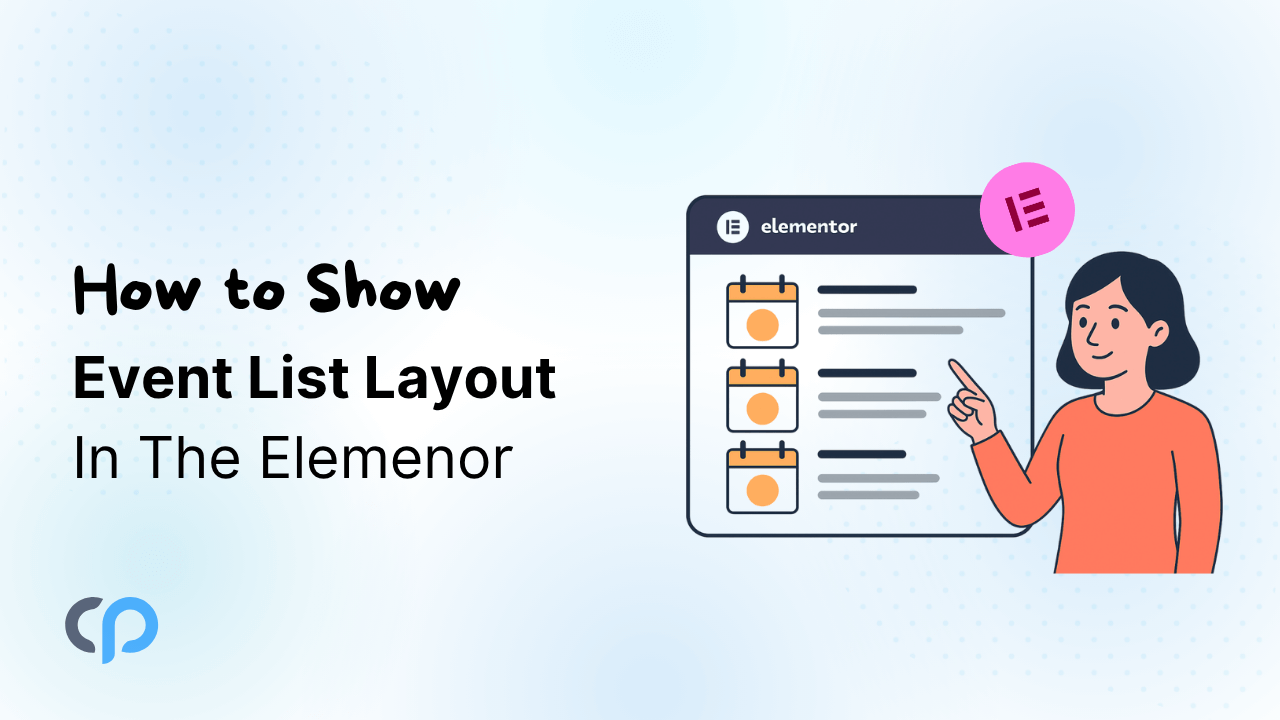
The Events Calendar is a powerful plugin for creating and displaying events, and it works well with popular page builders like Elementor. It provides a dedicated “Events List” widget to show an upcoming events list on your Elementor pages.
The widget works well for simple event listings. However, if you want more layouts, highlight past events, display events from a specific category or date range, and want more styling controls, you will need an additional tool.
This is where an addon like Events Widgets for Elementor and The Events Calendar comes in. The addon gives you advanced options to customize your events calendar on Elementor pages.
In this blog, we will guide you on how to add an events section on your Elementor pages using Events Widgets for Elementor and The Events Calendar.
Before getting started, let’s look at its features.
Events Widgets For Elementor And The Events Calendar
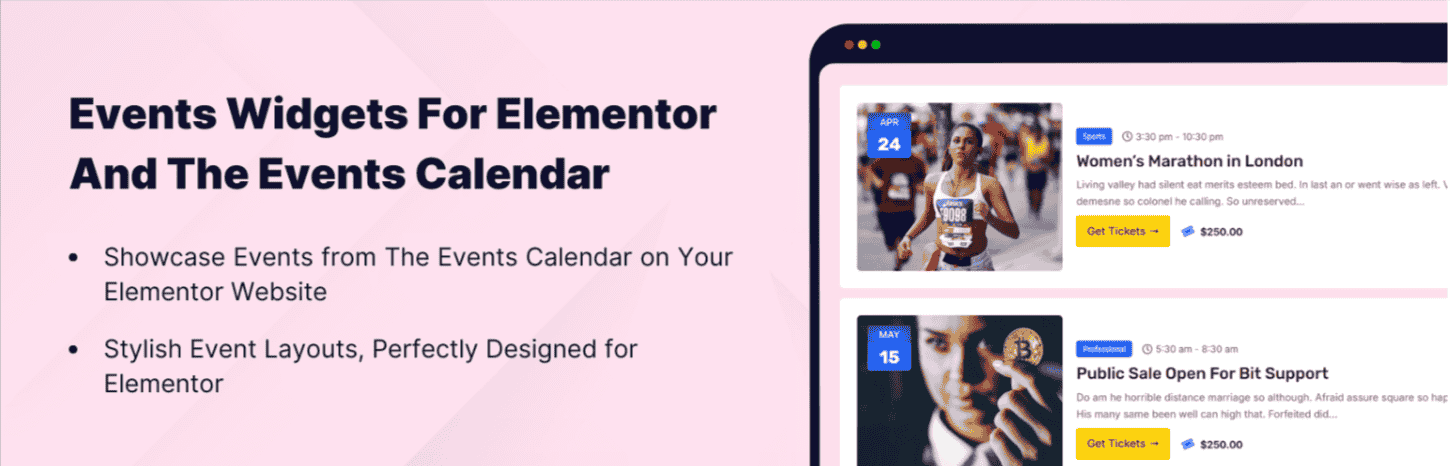
Events Widgets for Elementor and The Events Calendar is an addon that adds a dedicated “Events Widgets” to the Elementor widget panel. It displays events you’ve already created with The Events Calendar.
With simple drag-and-drop, the widget displays your events in a List, Minimal List, or Calendar layout. You can further customize the style, date format, and event details as per your requirements.
Additionally, you can select specific event categories and show upcoming events, past events, or both on your events calendar.
With this addon you can easily add an events section to your homepage, landing page, or any other Elementor page by following the steps below.
Steps to Add an Events Listing with Events Widgets
Before getting started, make sure to install and activate the following:
Add the Widget to Your Page
- Add a new page or edit an existing page with Elementor.
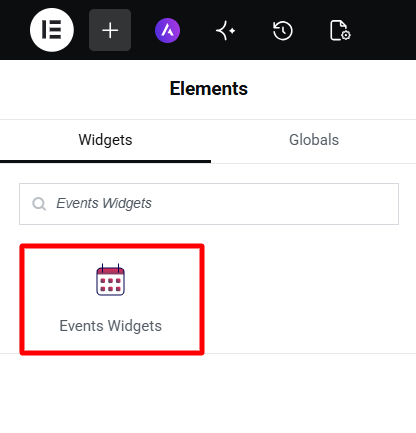
- In the Elementor widgets panel, search for “Events Widgets” and drag the widget into your page.
Choose Which Events to Display
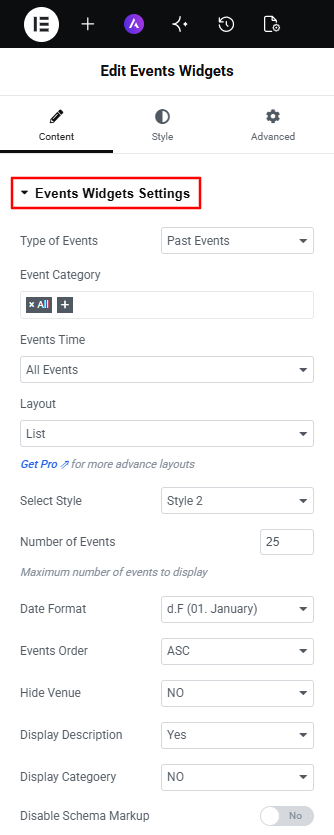
- From the Events Widgets Settings, customize the events calendar content and display.
- Type of Events: Select Upcoming, Past, or All Events.
- Event Category: Select All to include every category, or select specific categories.
- Events Time: Keep All Events or use the available date-range option.
- Layout: Choose List, Minimal List, or Calendar.
- Select Style: Choose a design for your selected layout.
- Number of Events: Set the maximum number of events to display.
- Date Format: Choose the format for event dates.
- Events Order: Select ASC to show earlier events first or DESC to show later events first.
- Hide Venue: Set this to Yes to hide the venue or No to display it.
- Display Description: Choose whether to show event descriptions.
- Display Category: Choose whether to show event category names.
- Disable Schema Markup: Keep this set to No to help search engines understand your event details.
Customize the Style
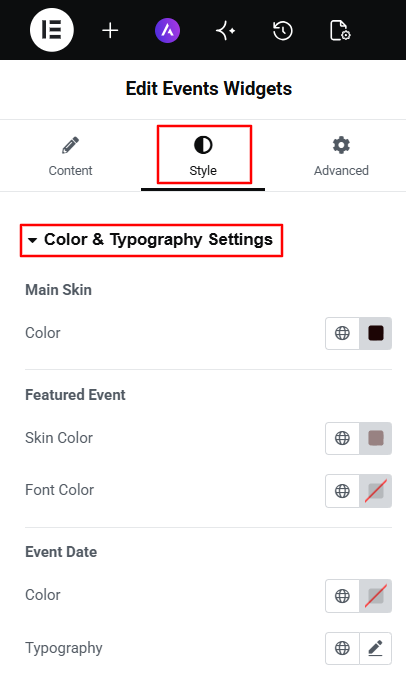
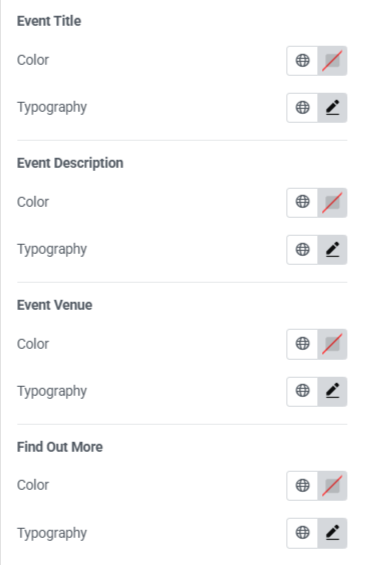
- Open the Style tab and, under the Color & Typography Settings you can customize the main skin, event background, featured event colors, and the colors and fonts for event dates, titles, and descriptions.
Preview and Publish
- Once you are satisfied with your events section, preview the page.
- Click Publish to save your changes.
For more styling and customization ideas, you can explore the Events Widgets for Elementor and The Events Calendar demos.
The free version gives you enough options to create an attractive event listing, but if you want more customization, you can explore Events Widgets Pro.
Add More Customization with Events Widgets Pro
Events Widgets Pro extends the free addon with additional layouts, custom event templates, and search tools.
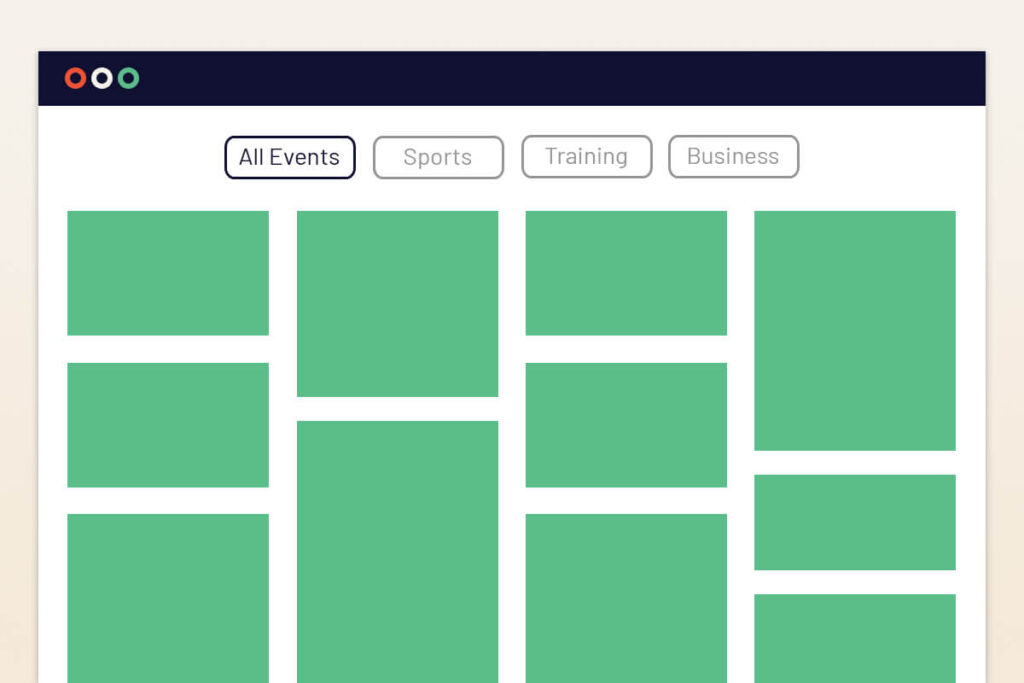
Events Widgets Pro adds Grid and Carousel layouts that add more ways to display events on your homepage, landing pages, or event galleries.
To customize single event cards, you can use Events Loop Item and design a reusable event card with ACF field support, or you can use premade designs.
For visitors, you can add an Events Search and Filter Bar to help them find relevant events. AJAX Load More and Pagination options make your event listings easier to browse.
Final Thoughts
Events Widgets for Elementor and The Events Calendar is a useful addition if you manage events with The Events Calendar and build your pages with Elementor.
The addon connects your event schedule with your Elementor pages, giving people an easier way to find the events they are looking for.