If you run an events website on WordPress, chances are you already use The Events Calendar plugin.
It’s one of the most popular event management plugins for WordPress that makes it easy to create and manage events directly from your dashboard.
You can add event titles, dates, venues, organizers, categories, featured images, descriptions, and more that you need to publish professional event listings.
But here’s the problem: Creating events is easy. Displaying them beautifully across your website is where things get complicated.
By default, The Events Calendar relies on its own calendar pages and archive layouts that become a limitation when you want more control over where and how your events appear.
For example, you may want to showcase upcoming events on your homepage, add an event carousel below your hero section, display music events on a dedicated page, or place a small upcoming events section in your website sidebar.
These kinds of event displays are difficult to create using the default layouts of The Events Calendar.
But there is a solution: Events Shortcodes plugin.

In this guide, we will explain how to display The Events Calendar and customize layouts via smart shortcode.
But before that, let’s understand the Events Shortcode plugin in more detail.
What is Events Shortcodes?
Events Shortcodes is a powerful addon for The Events Calendar plugin that allows you to display events anywhere on your site using shortcodes.
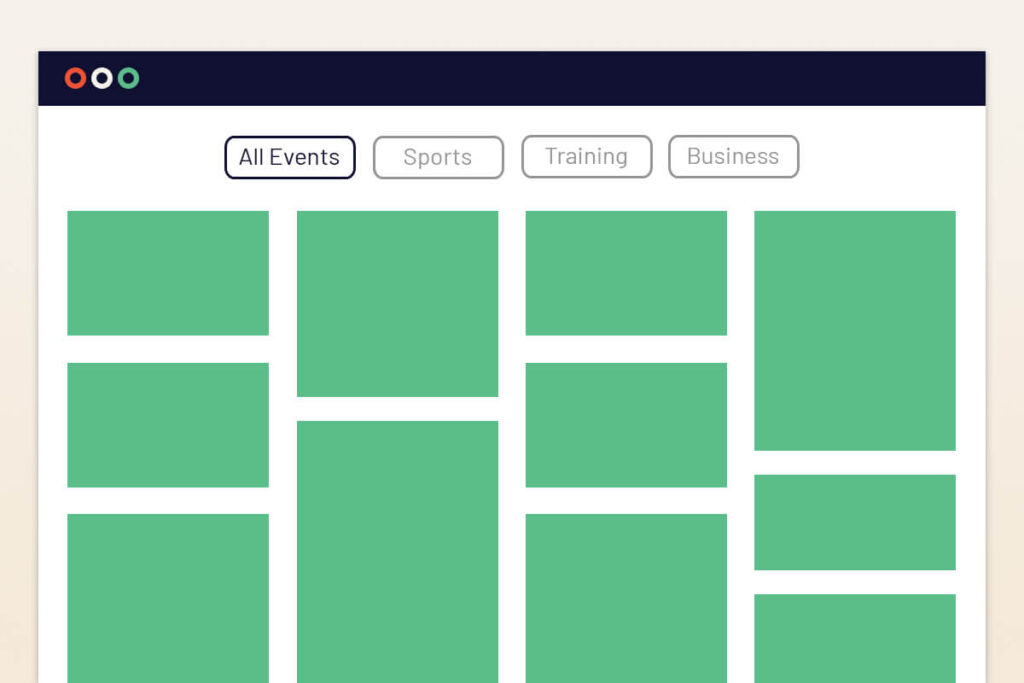
This addon extends the functionality of The Events Calendar plugin by allowing you to display your events in a list, grid, carousel, slider, masonry, accordion, or even a timeline format.
Key Features
- Shortcode Friendly: The plugin allows you to display events anywhere on your website using a simple shortcode. Simply copy the generated shortcode and paste it where you want the events to appear.
- Multiple Event Layouts: Display events in List, Grid, Carousel, Slider, Masonry, Accordion, and Timeline views.
- Customization Options: You can customize your event display by changing event title styles, colors, images, typography, button designs, spacing, and more according to your website theme.
- Date Formats: The plugin allows you to change event dates and time formats based on your preferred style or regional format.
- Event Filtering: Allow visitors to search or filter events based on categories, tags, venues, or organizers, making it easier to browse and discover the events they are interested in.
- Events Schema SEO Support: The plugin adds structured event schema data to your event listings. This helps search engines understand your event details properly and improve the ranking.
- Page Builder Compatibility: The plugin is fully compatible with popular page builders. You can easily display events anywhere inside your preferred page builder layout using a shortcode.
Quick Setup Guide – Events Shortcodes Pro
Step 1: Before installing and activating the Events Shortcodes Pro plugin, make sure you have installed and activated The Events Calendar plugin on your WordPress website.

The Events Calendar plugin is required to create and manage event details, while Events Shortcodes Pro helps you display those events in different layouts using shortcodes.
Step 2: Choose where you want to display your events. The plugin allows you to add event shortcodes in:
Step 3: Choose your preferred event layout.
Using Events Shortcodes Pro, you can display events in List, Grid, Carousel, Masonry, or Timeline layout.
The plugin automatically fetches events from The Events Calendar and displays them on your page.
Step 4: The plugin includes advanced filtering and event display options to help visitors easily find events.
You can display only featured events, show upcoming or past events, display events by organizer, venue, categories, or tags, change the event date format, and enable the frontend search and filter bar.
These settings improve event navigation and help users quickly find relevant events on your website.
Step 5: Events Shortcodes Pro allows you to customize your event display according to website branding. Easily customize colors, typography, font sizes, buttons, background styles, spacing, and alignment.
Step 6: After customizing the shortcode and layout, save your changes and preview the page on the frontend.
Step 7: If you are using the Gutenberg editor, you can also use the dedicated Events Block instead of manually adding shortcodes. This makes it easier to display and customize events visually inside the editor.

For a more detailed step-by-step setup guide, shortcode options, and advanced customization settings, check out the complete documentation here: Events Shortcodes Pro
Conclusion
The Events Calendar is great for managing events, but displaying them exactly the way you want often requires more flexibility.
Events Shortcodes Pro helps solve that by letting you showcase events in different layouts and place them anywhere on your website using simple shortcodes.
If you want better control over your event sections without spending time on custom development, it’s definitely a plugin worth exploring.
FAQs
Can I display The Events Calendar events anywhere on my website?
Yes. Using Events Shortcodes Pro, you can display events inside pages, posts, sidebars, homepage sections, Elementor templates, and Gutenberg layouts using shortcodes.
Do I need The Events Calendar plugin to use Events Shortcodes Pro?
Yes. Events Shortcodes Pro is an addon and requires The Events Calendar plugin to be installed and activated first. The Events Calendar manages the event data, while Events Shortcodes Pro handles the event display layouts and shortcode functionality.
Do I need coding knowledge to use Events Shortcodes Pro?
No. The plugin is beginner-friendly and allows you to create and customize event displays without writing code.
Which layouts are available in Events Shortcodes Pro?
The plugin includes multiple layout options such as List, Grid, Carousel, Masonry, Accordion, and Timeline layouts.
Is Events Shortcodes Pro compatible with Elementor?
Yes. The plugin is fully compatible with Elementor and other popular page builders like Gutenberg and Divi via shortcode.
Can I display only specific events using shortcode filters?
Yes. The plugin includes filtering options that allow you to display events based on categories, tags, organizers, venues, featured events, upcoming events, past events, and custom date ranges. This helps you improve event navigation and help users quickly find relevant events.
Can I customize the design of event sections?
Yes. Events Shortcodes Pro includes various styling and customization options. You can customize typography, colors, spacing, buttons, background styles, alignment, event images, and other design elements to match your website branding.