
Events Search & Filter Bar is a powerful The Events Calendar addon that adds customizable event search and filtering options to your events using a smart shortcode.
This guide will show you how to install and activate Events Search & Filter Bar step-by-step.
Try Free Version
Skip this step if you have already purchased the Pro version. The free version of Events Search & Filter Bar is available on the WordPress Plugin Directory and is active on 3,000+ websites.
The Free version lets you add event title search, type-ahead suggestions, date filters, inline event results, sorting options, event card controls, and search bar styling.
How to Install Free Version:
- Log in to your WordPress dashboard.
- Navigate to the Plugins section.
- Search for the “The Events Calendar” plugin.
- Install
The Events CalendarandEvents Search & Filter Bar for The Event Calendar. - Once the plugins are installed, activate them.

That’s it! Events Search & Filter Bar plugin is now installed and activated, and you can use it to display events on your WordPress website.
Download & Install Pro Version
Upgrading to Events Search & Filter Bar Pro gives you more control over how visitors search and filter your events.
With Pro, you can search event descriptions, venue names, and organizer names, filter events by category, tag, venue, organizer, and location, add advanced filter layouts and styles, send searches to a separate event results page and more.
Where to Download Pro Plugin ZIP?
You can download the Pro plugin zip file in two ways:
- From Email : After purchasing the plugin, check your inbox for the order confirmation email. It includes a download link for the Pro plugin ZIP file.
- From Your Account : Log in to your Cool Plugins account and click the Download button to download the Pro plugin ZIP file.
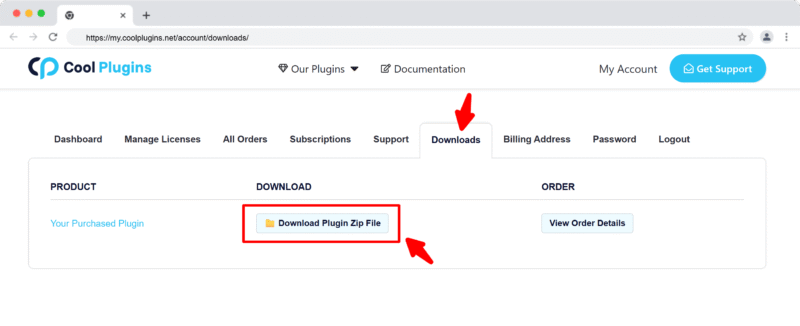
Install via WordPress Admin
- Log in to the WordPress Admin panel.
- From the left menu panel, go to Plugins > Add New > Upload the plugin.
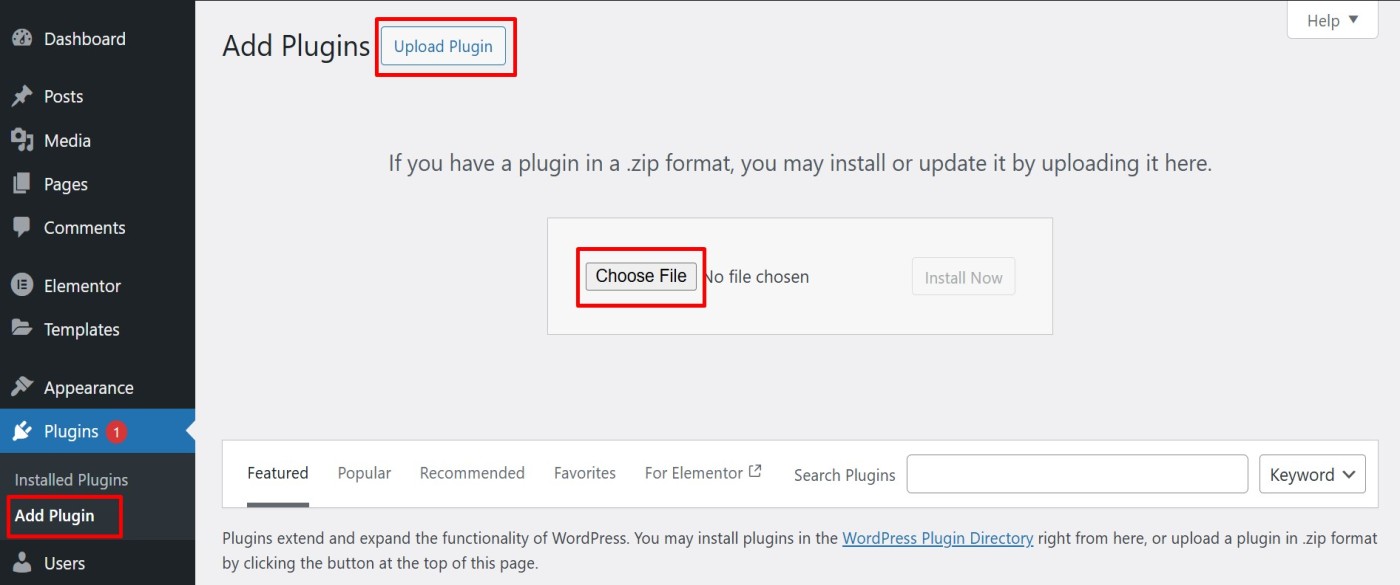
- From here, choose the file you just purchased and downloaded, make sure the file is in (.zip) format, (events-search-and-filter-bar-pro.zip).
- Click Install Now & Activate the plugin after installation.
Install via FTP Account
- To install the plugin, use your FTP software and browse to the wp-content/plugins folder.
- Extract the main plugin file (.zip) to the folder and upload it to the server.
- Once it’s uploaded, go to your WordPress admin panel and browse to Plugins >> Installed Plugins.
- Click on the Activate link.