Plugin Compatibility
Q1. Is the Events Search & Filter Bar compatible with The Events Calendar?
Ans. Yes. The Events Search & Filter Bar is designed to work with The Events Calendar and lets you add search and filtering options to your event listings.
Q2. Can I use the Search & Filter Bar with Elementor?
Ans. Yes. You can add the generated shortcodes to Elementor using the Shortcode widget. This lets you place the search bar and event results anywhere within your Elementor layout.
Q3. Can I use the plugin with Gutenberg?
Ans. Yes. You can add the generated shortcodes to a Shortcode block in the WordPress block editor.
Q4. Can I use the Search & Filter Bar with other page builders?
Ans. Yes. Since the search bar and results are generated using WordPress shortcodes, you can generally add them to any page builder that supports shortcode content.
Q5. Can I use the search bar without displaying results on the same page?
Ans. Yes. You can choose A separate page under Where should search results appear. This allows your visitors to search from one location and view the matching events on another page.
Common Issues & Solutions
Q1. Why are my event results not showing?
Ans. Make sure the Search Bar and Results shortcodes are added correctly and use the same target value.
If the target values are different, the search bar cannot connect to the results section. Copy the generated shortcodes again from Events Addons > Search & Filter Bar and replace the existing ones.
Q 2. Why does the search bar appear but the results do not update?
Ans. Check where your results are configured to appear under Setup > Where should search results appear. If you have selected Below search bar, make sure the Results shortcode is placed on the same page as the Search Bar shortcode, or if you have selected A separate page, make sure the Results shortcode is added to the selected results page and that both shortcodes use the same target value.
Q3. Why are some events missing from the search results?
Ans. Check the Events to Show setting under Results. If it is set to Upcoming, past events will not appear. Also check the Recurring Events and Results Per Page settings. Clear any active filters and try the search again to confirm whether matching events are available or not.
Q4. Why is the search button not visible?
Ans. Go to Events Addons > Search & Filter Bar > Bar Design and check Search Button Style. If None is selected, the search button is hidden intentionally. Visitors can press Enter after entering a search term. To display a button, select another style such as Solid, Solid Icon, Outline, Icon, or Text.
Q5. Why are event details missing from the result cards?
Ans. Go to Events Addons > Search & Filter Bar > Results and check Items to Show Inside Card. Enable the details you want to display, such as Image, Title, Date, Venue, or Cost. The selected information will then appear in the event result cards.
License & Account Queries
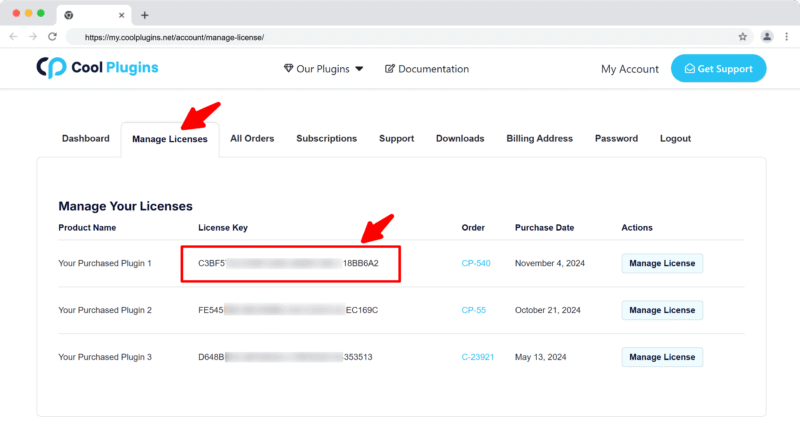
Q1. Where can I find my license key?
Ans. You can find your license key by logging into your account at my.coolplugins.net. Once logged in, navigate to the Manage Licenses section. There, you will see a list of your purchased plugins along with their license keys displayed next to each plugin name.
Q2. How do I activate my license on a site?
Ans. After installing the plugin, go to Events Addons > License. in your WordPress dashboard and enter your license key in the License section.
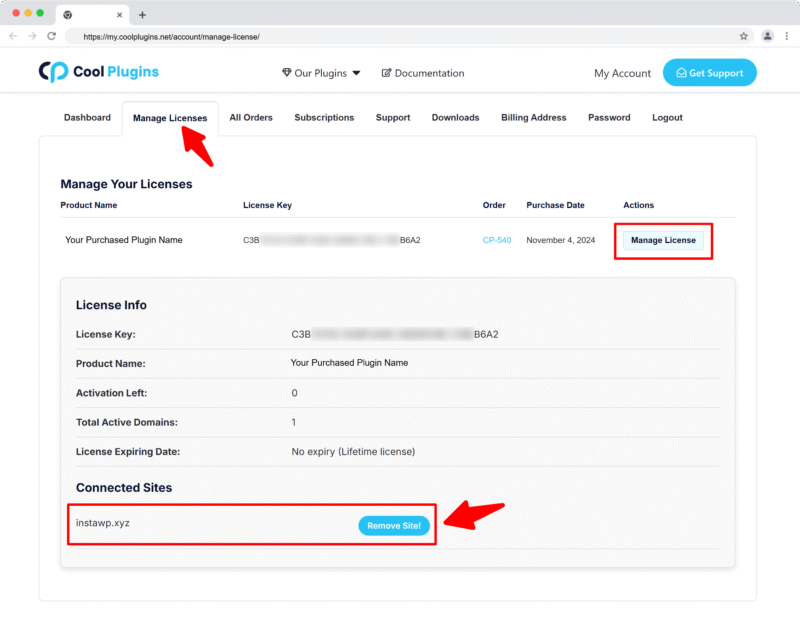
Q3. Can I move my license to a different website?
Ans. Yes, you can transfer your license from one website to another. But to do this, make sure to deactivate the license on your old domain first, and then activate it on the new website.
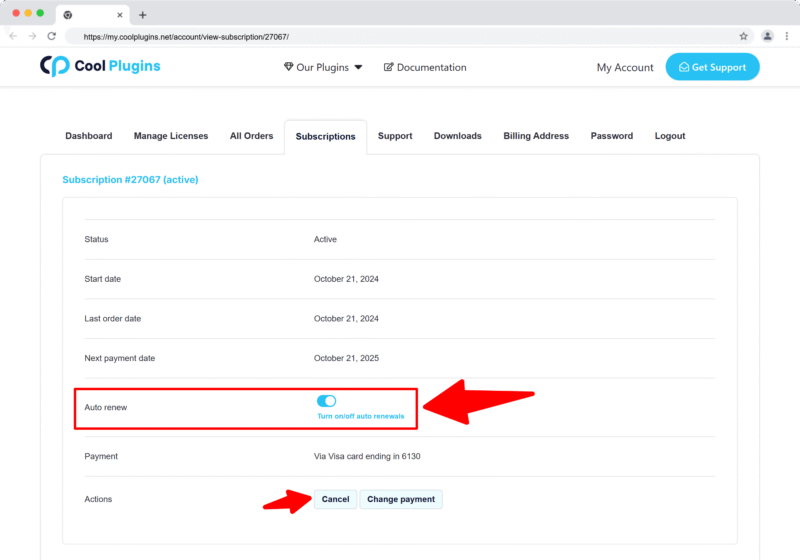
Q4. How can I cancel the auto-renewal of my license key?
Ans. You can cancel the auto-renewal at any time by logging into your account on our website. Go to the Subscriptions section, find your active license, and click on the Cancel Auto-Renewal button. This will stop future charges, but your license will remain active until the end of the current billing period.
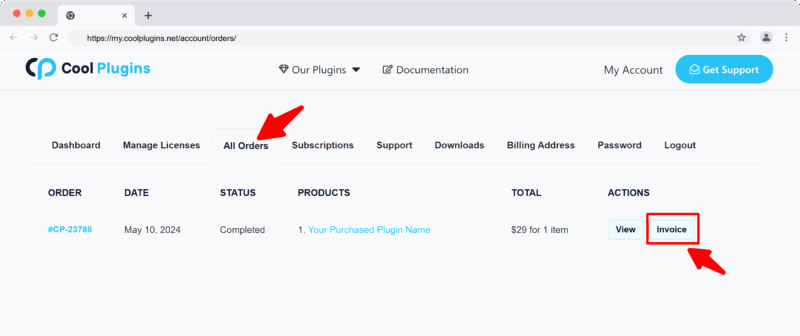
Q5. How can I download my invoice?
Ans. To download your invoice, log in to your account on our website. Navigate to the Orders section. Find the order you want the invoice for, and click the Invoice button to download it.
Contact Support
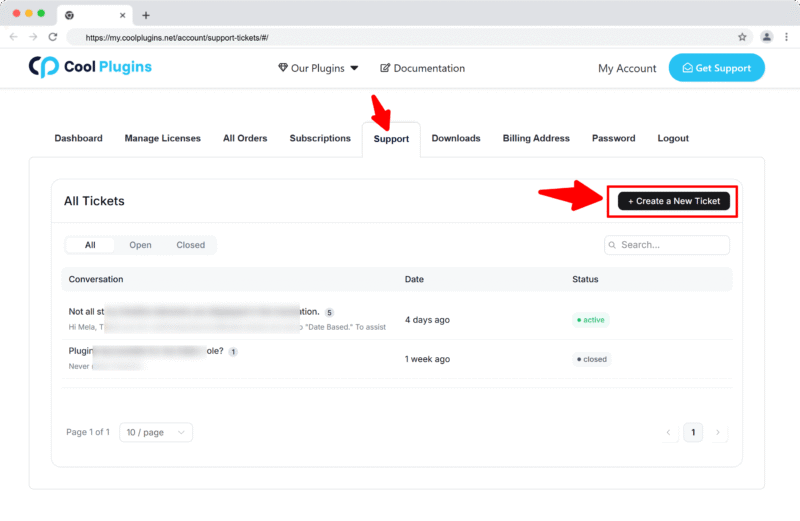
Q1. I need help with an issue not listed here. How can I get support?
Ans. If you have a question or issue not covered in the FAQ, you can contact our support team by logging into your account at my.coolplugins.net and submitting a support ticket. Our team typically responds within 24–48 business hours to help resolve your issue.
Q2. Is support available for free plugin users?
Ans. If you are a free plugin user, you can get help by raising a ticket through the WordPress.org support forum.