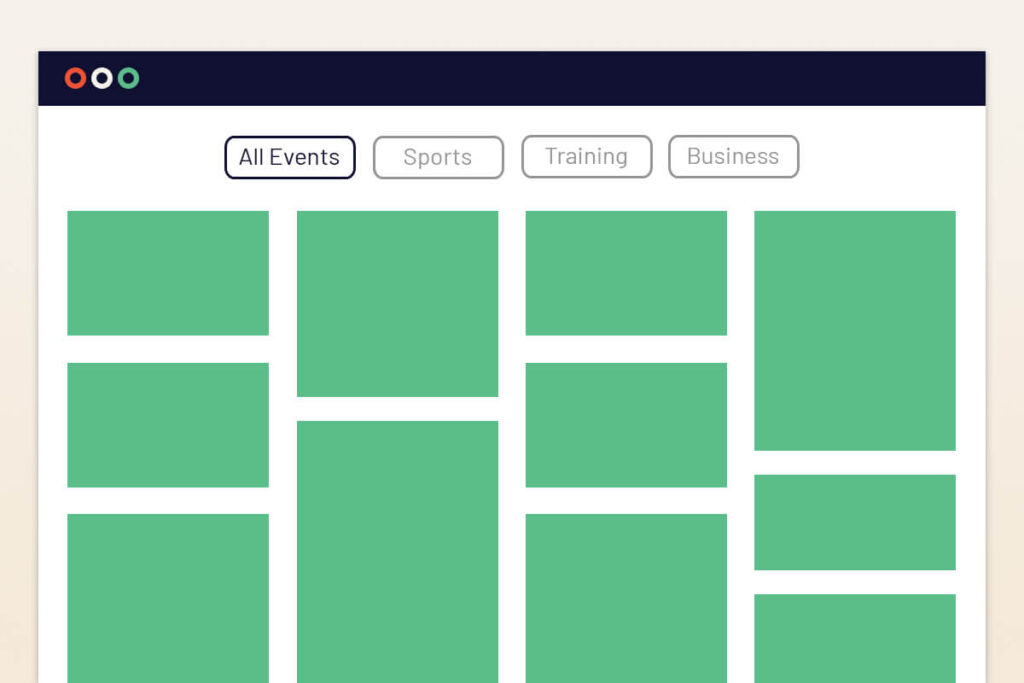
The Events Calendar is a powerful plugin for creating and managing events. It has basic keyword and date search options, which work well for smaller event lists.
However, when your website has hundreds or thousands of events, visitors need more ways to narrow the results. Filters like category, tag, venue, and organizer help people to find the relevant events faster.
For example, imagine a visitor wants to find an AI art workshop at the City Library this Saturday.
With the basic search options, the visitor can search events by keyword or date only.
But using advanced filters, the visitor can select:
- Category: Workshops
- Tag: AI
- Venue: City Library
- Date: This Saturday
These filters work together to make the event list shorter and more relevant.

If you want to extend the basic event search with category, tag, venue, organizer, and location filtering, you can use an addon such as Events Search and Filter Bar Pro.
In this blog, you will learn how to upgrade your event search bar with Events Search and Filter Bar Pro and create a better event discovery experience for your visitors.
Events Search and Filter Bar Pro
Events Search and Filter Bar Pro is an addon for The Events Calendar that adds advanced filtering options to your events search bar.
It has a free version that provides keyword search, date filtering, event results, grid/list views, and shareable search URLs.
Events Search and Filter Bar Pro adds filters for category, tag, venue, organizer, and location, along with broader keyword search options. Visitors can combine these filters to narrow large event lists quickly.
The plugin uses shortcodes, so you can place the search bar and results on any pages, posts, and widgets.
How Do Advanced Filters Help Visitors Find Events?
Each filter gives visitors a different way to discover the right event.
| Filter | How it helps visitors |
| Category | Find specific event types such as workshops, concerts, webinars, or sports events. |
| Tag | Narrow events by topics such as AI, Kids, Free, Beginner, or Networking. |
| Venue | Show only events happening at a particular venue. |
| Organizer | Find events hosted by a specific person, business, school, club, or organization. |
| Date | Find events happening Today, This Weekend, Next Month, or within a custom date range. |
When your events have categories and assigned venues and organizers, these filters give visitors more ways to narrow the event list.
Now let’s follow the steps below to add these filters to your events search bar.
Steps to Add Category, Tag, Venue, and Organizer Filters to The Events Calendar Search Bar
Prerequisites
Firstly, install and activate the following:
Since Events Search and Filter Bar Pro is an addon, you need The Events Calendar to create the events that visitors will search.
Note: Make sure your events already have the categories, tags, venues, and organizers assigned.
Open the Search and Filter Bar Settings
After activating Events Search and Filter Bar Pro, the Events Addons section will appear in your WordPress Dashboard.
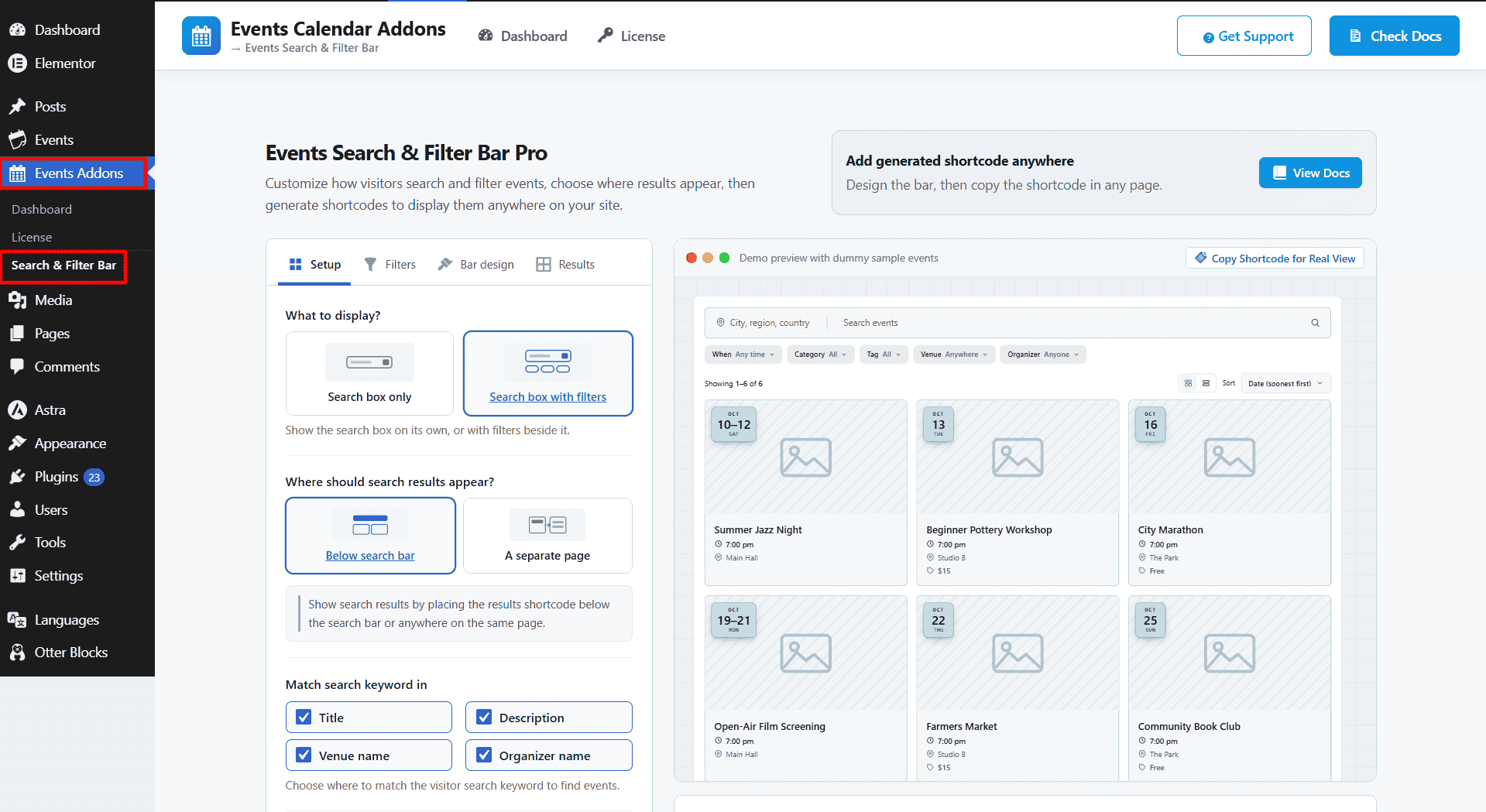
- Go to Events Addons > Search and Filter Bar.
- This will open the Search & Filter Bar settings.
From here, you can configure the Setup, Filters, Bar Design, and Results tabs.
Configure the Search Setup
From the Setup tab, you can configure:
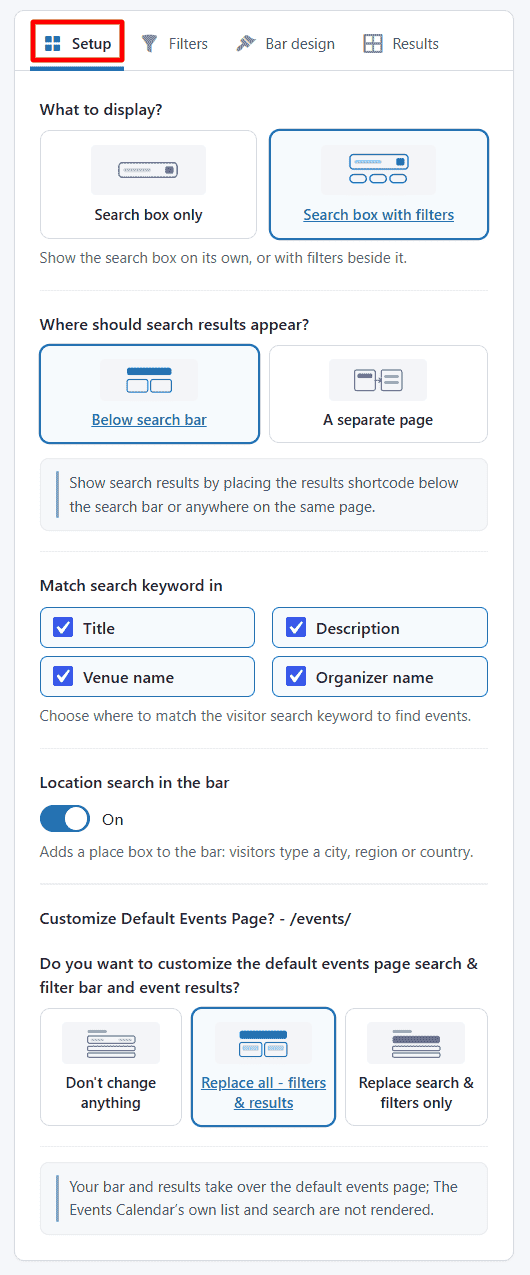
- What to display: Choose Search box with filters so visitors can use keyword search together with the filters.
- Search results: Show results below the search bar or send visitors to a separate results page.
- Match search keyword in: Choose whether keyword search should check the Title, Description, Venue name, and Organizer name.
- Location search: Enable this if you want visitors to search events by city, region, or country.
- Default Events page: You can keep the default page unchanged, replace only its search and filters, or replace both the controls and event results.
Select the Filters
Open the Filters tab to choose which filters appear in the search bar and how they are displayed:
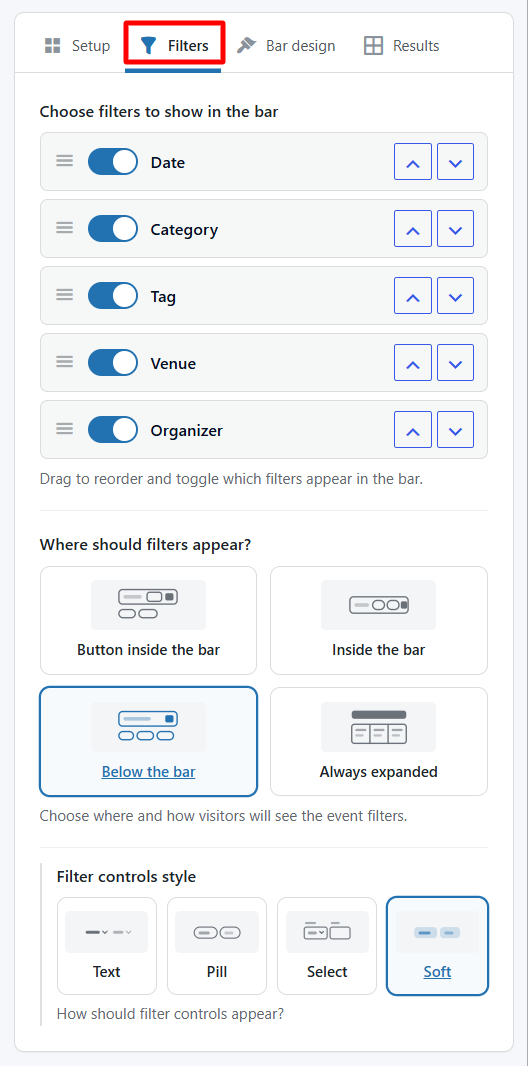
- You can enable or disable these filters: Date, Tag, Category, Venue, and Organizer.
- Use the up and down arrows or drag the filters to reorder them, and place the most-used filter first.
- Under Where should filters appear?, pick one option:
- Button inside the bar: the filters open from a button in the search bar.
- Inside the bar: the filters sit inside the search bar.
- Below the bar: the filters show in a row under the search bar.
- Always expanded: all the filters stay open and visible.
- You can also choose the filter control style: Text, Pill, Select, or Soft.
Customize the Bar Design
Open the Bar design tab to customize the event search bar:
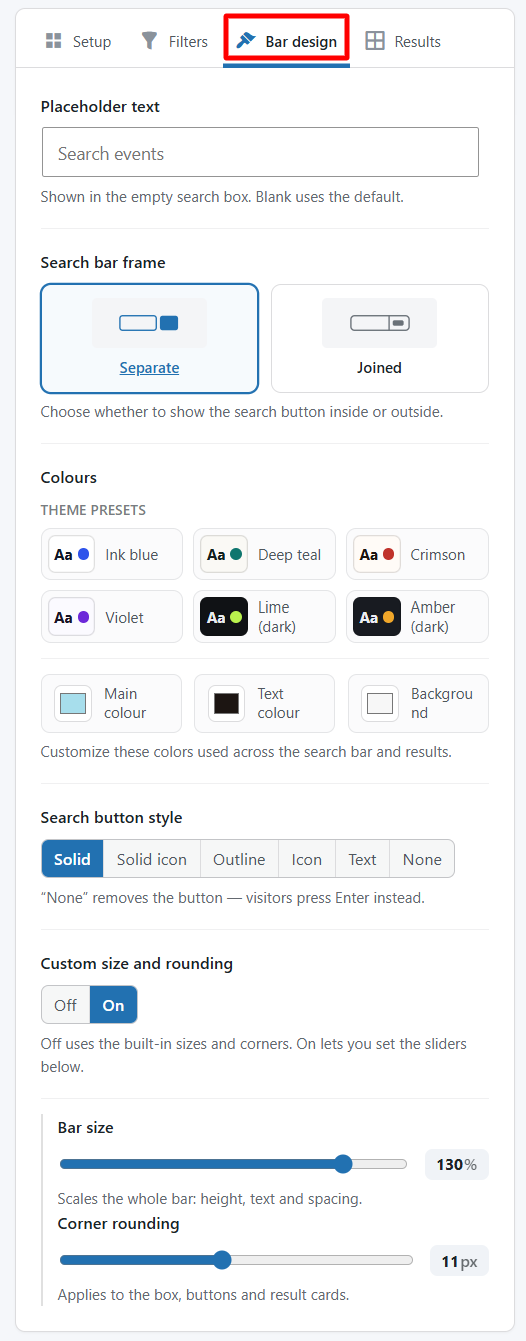
- Placeholder text: Change the text shown inside the empty search field, such as “Search events”.
- Search bar frame: Choose whether the search field and button appear Separate or Joined.
- Colours: Use a preset theme or customize the main colour, text colour, and background colour.
- Search button style: Choose from Solid, Solid icon, Outline, Icon, Text, or None.
- Custom size and rounding: Turn this on and manually adjust the search bar size and corner rounding.
Configure the Results
Open the Results tab to configure how filtered events are displayed.
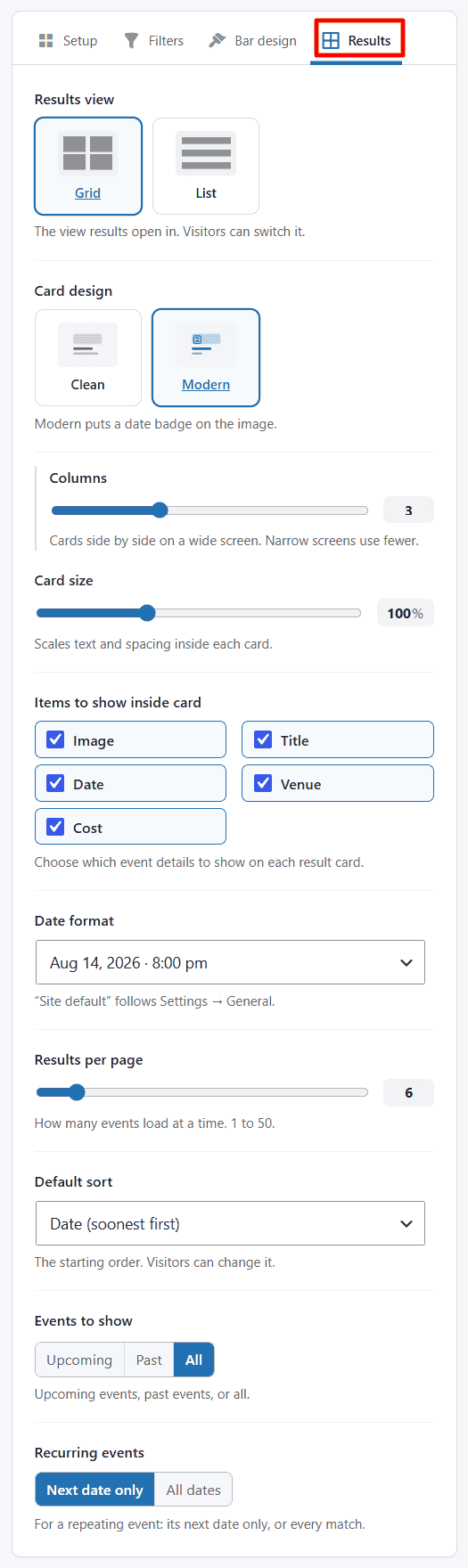
- Result View: Choose Grid or List.
- Event cards: Customize the card style, card details, and date format.
- Results per page: Set how many events appear at once.
- Events to show: Choose Upcoming, Past, or All events.
- Recurring events: Show only the next date or all matching dates.
Copy the Shortcode and Add It to Your Page
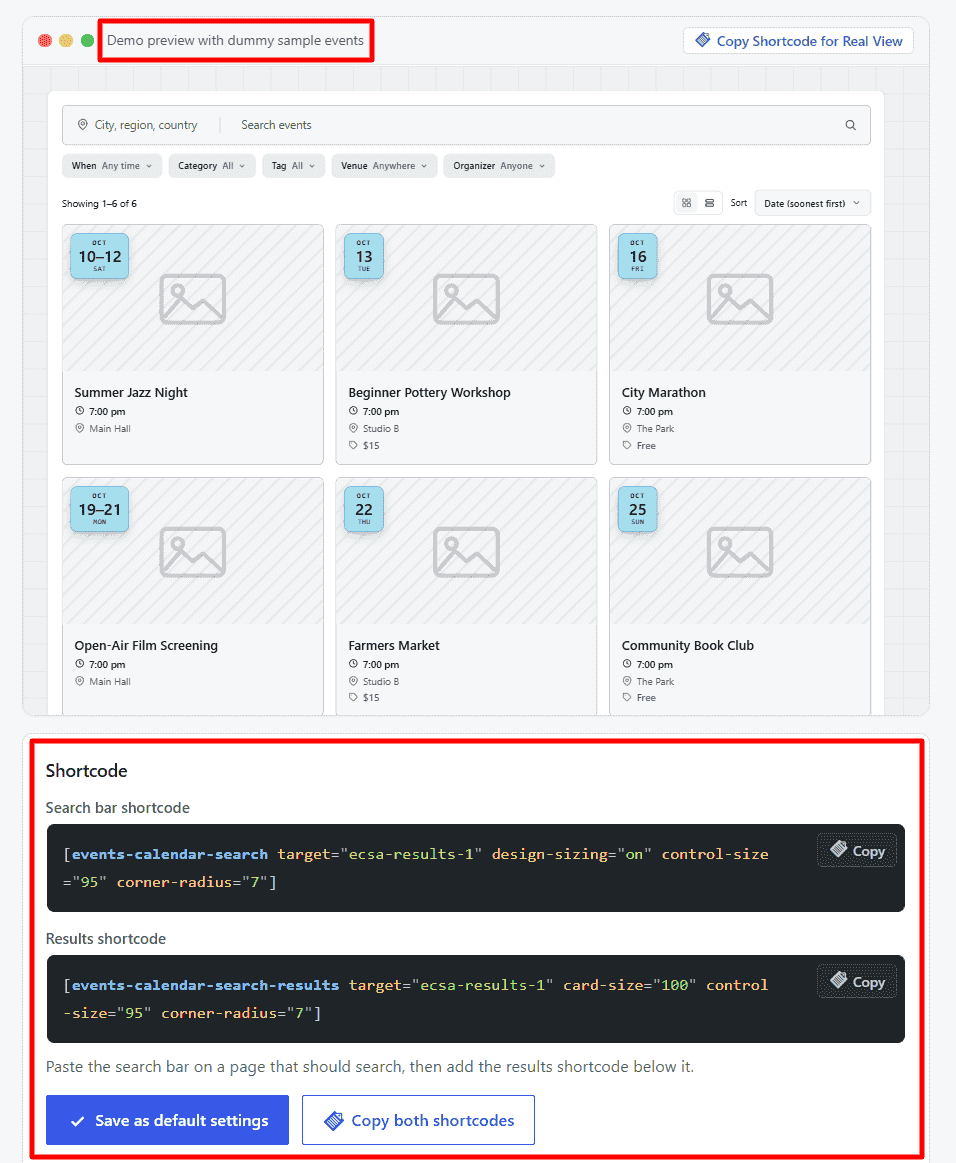
- You can check the live preview to see how your filters look.
- The plugin automatically generates the search bar and results shortcodes based on your selected settings.
You can copy the shortcodes and paste them into the page where you want the search bar. Then save or update the page.
Output
Here is the final output of the Events search bar with Advanced filters:
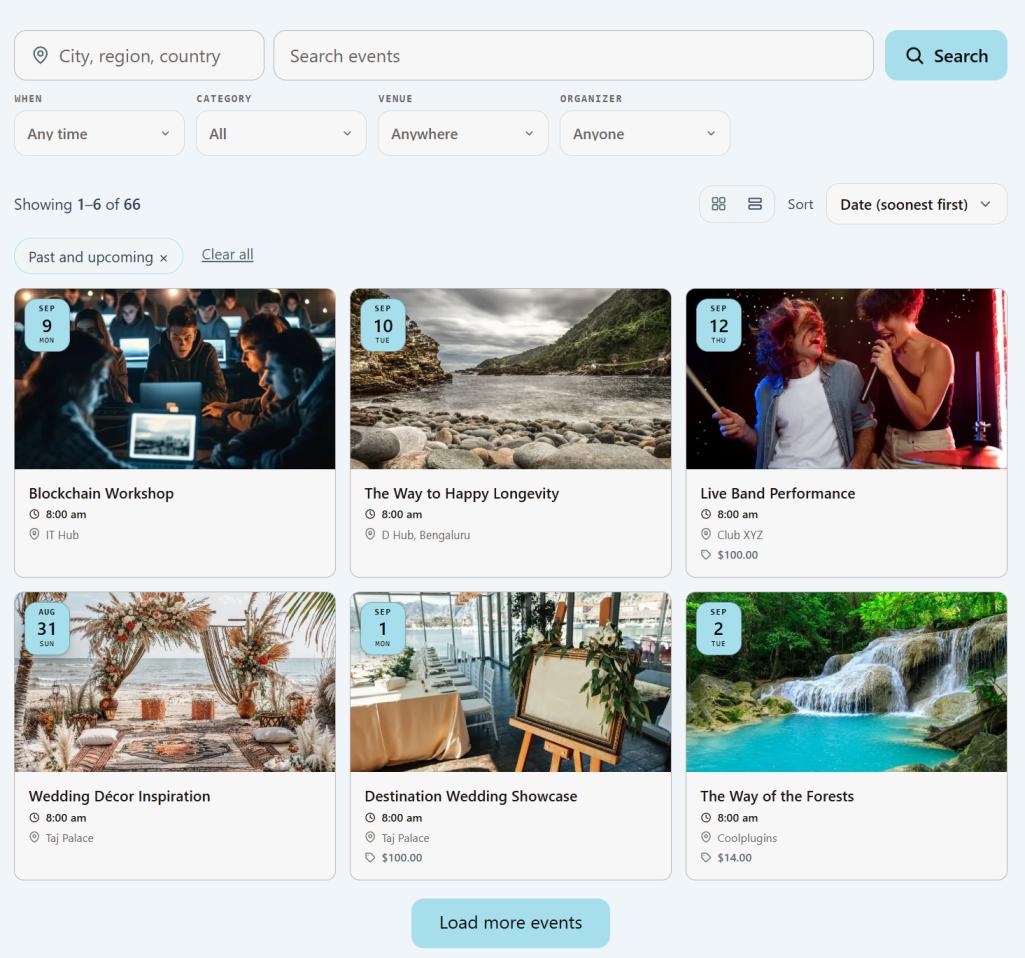
You can View the live demo of Events Search and Filter Bar Pro and test the available filters in action.
Best Practices for Advanced Event Filters
Adding more filters does not always make your event search better. The filters need to be organized properly.
Here are some simple practices you can follow:
- Use categories for broad groups: For example, Workshops, Webinars, Conferences, or Sports.
- Use tags for specific topics or characteristics: For example, AI, WordPress, Kids, Free, or Beginner.
- Assign the correct venue to each event: This helps venue-based and location-based searches return useful results.
- Keep organizer names consistent: Use the same organizer name each time to avoid duplicate or confusing entries.
- Use the filters your visitors actually need: Use the filters that are relevant to your website. For example, a local events website needs location and venue filters, while a training or workshop website uses category, tag, and date filters.
- Test the Search as a Visitor: After setting up the search bar, open your website as a visitor and try to find several events.
Final Thoughts
A good event website should be easy to use so your visitors can find the right event without extra effort. As your event website grows, it is worth adding filters to your search bar.
With Events Search and Filter Bar Pro, you can give your visitors useful ways to find the events quickly without making the calendar complicated.
The best approach is to keep your events calendar organized and use filters that are actually relevant to your visitors. This will make your event listings easier to explore and help people reach relevant events faster.
FAQs
What is an Events Calendar filter bar addon?
A filter bar addon adds extra filtering controls to your events search bar. It helps visitors narrow event results by details such as category, tag, venue, organizer, location, and date.
How do I add advanced filters in The Events Calendar?
You can add advanced filters by using an addon such as Events Search and Filter Bar Pro. After installing it, enable filters like Category, Tag, Venue, Organizer, Date, and Location, customize their layout, and paste the generated shortcode to your events page.
How to filter events by category?
Open the Filters tab in Events Search and Filter Bar Pro and enable the Category filter. You can then choose where the filter appears and reorder it with the other filters.
Can I filter events by venue and organizer?
Yes. With Events Search and Filter Bar Pro, you can enable Venue and Organizer filters so visitors can narrow the event list based on where an event is held or who is hosting it.
Can I use multiple event filters at the same time?
Yes. Visitors can combine filters such as Category, Tag, Venue, Organizer, and Date to narrow the event list and find more relevant results.
Can I filter events by location in The Events Calendar?
Yes. You can enable location search so visitors can search events by city, region, or country.