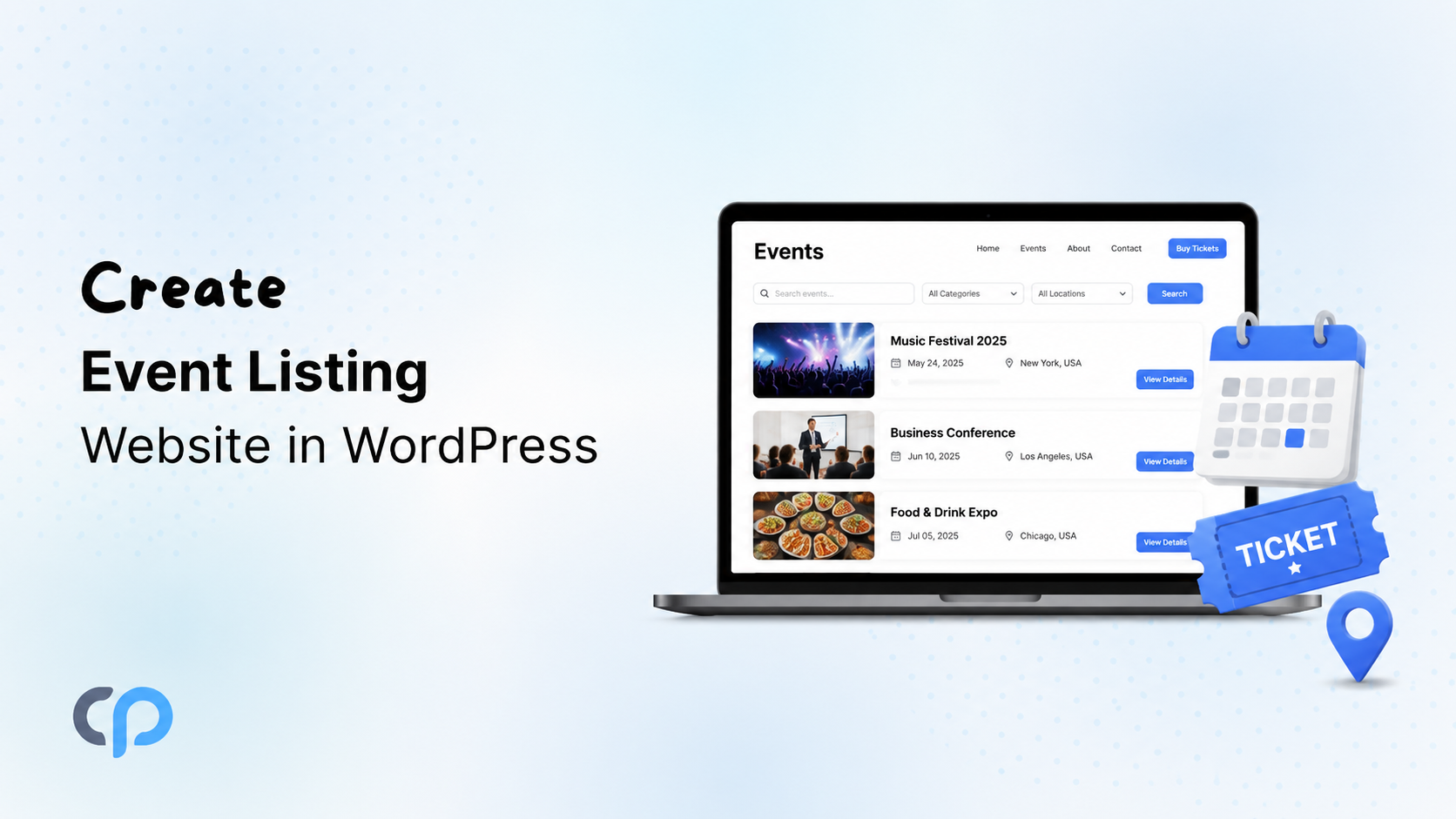
If you are planning to build a website that shows upcoming events, such as for a conference, a college, a community group, or a local business, WordPress is one of the best platforms to use. It is free, flexible, and has thousands of plugins that make the process simple, even if you are not a developer.
Among all the event plugins available for WordPress, The Events Calendar is the most popular one. It is free, well maintained, and works with almost every WordPress theme and page builder.
In this guide, we will walk you through the complete process of creating a WordPress event listing website, step by step. By the end of this article, you will have a working website where visitors can see your events, search through them, and even register for the ones they are interested in.
Let us get started.
What You Will Need Before You Start
Before you begin, make sure you have the following ready:
- A WordPress website with hosting already set up.
- The Events Calendar plugin, which you can install directly from your WordPress dashboard.
- A page builder if you use one, such as Elementor or Divi. If you do not use a page builder, that is completely fine too, as you can still display your events using shortcodes.

The page builder you use will decide which tool is best for displaying your events later in this guide, so keep that in mind as you read further.
Step-by-Step Process to Create Your Event Listing Website
Step 1: Install and Set Up The Events Calendar
The first step is to install the free The Events Calendar plugin on your WordPress website.
To do this, go to your WordPress dashboard, open Plugins > Add New, search for “The Events Calendar”, and click Install and then Activate.
Once the plugin is active, you will see a new menu called Events in your dashboard. From here, you can create your first event by adding a title, date, time, venue, and organizer details.
This is enough to get your events showing on your website. However, by default, the design is very basic, and your event pages may not match the rest of your website. In the next steps, we will improve this step by step.
Step 2: Choose How to Display Your Events
Once your events are added, the next question is how you want to show them on your website. This depends completely on how your website is built.
If you use Elementor
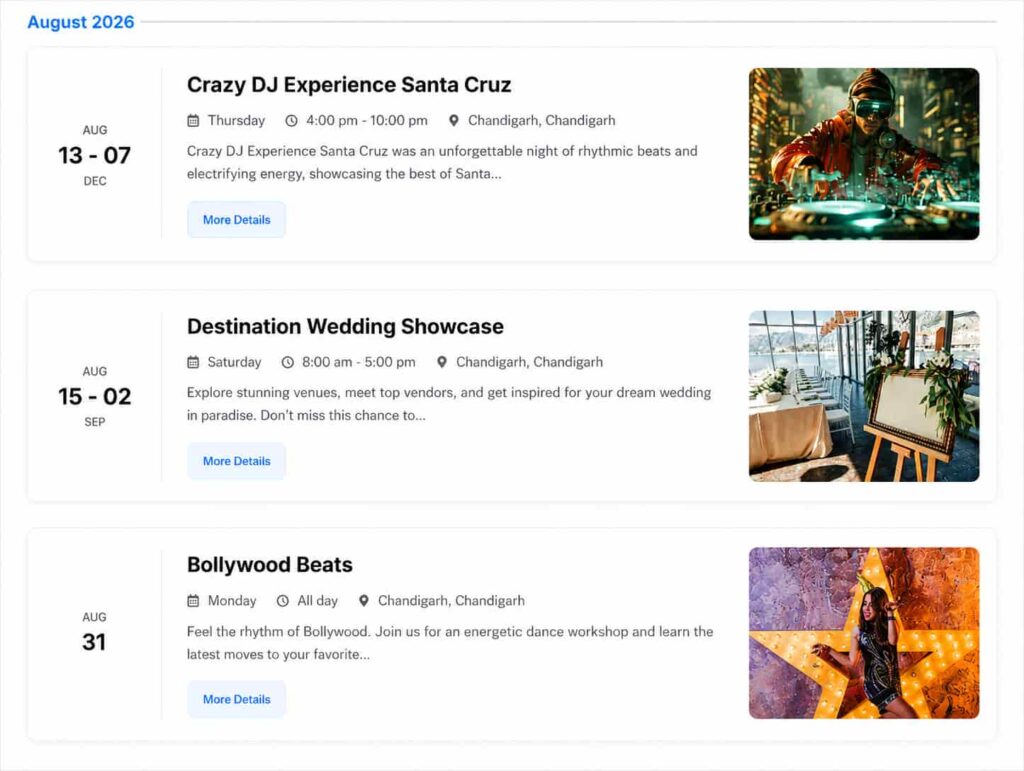
You can use Events Widgets Pro, which adds ready-made Elementor widgets for your events. With this plugin, you can display your events as a list, grid, carousel, or calendar, and customize the colours and fonts to match your website. You can see how each layout looks on the Events Widgets Pro demo page.
If you use Divi
You can use Events Calendar Modules for Divi, which brings the same kind of layouts directly inside the Divi builder. This is helpful if your entire website is already built using Divi, and you do not want to mix builders. You can check the layouts on the Events Calendar Divi module demo page.

If you do not use a page builder
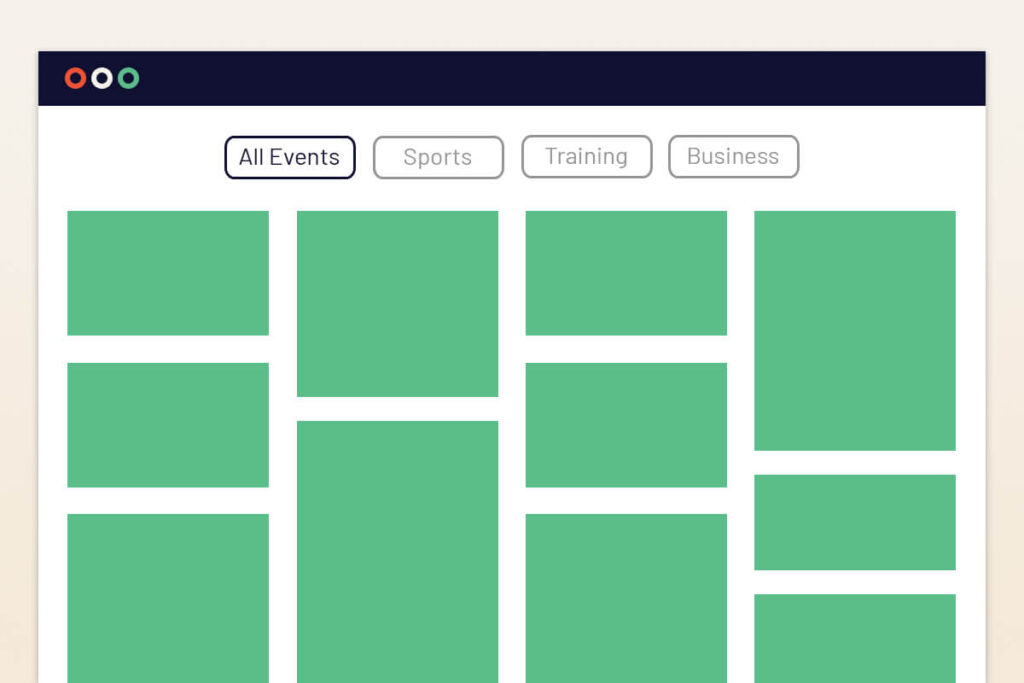
If your website uses the classic editor or Gutenberg, you can use Events Shortcodes Pro. It allows you to display your events using a simple shortcode, in layouts such as list, grid, carousel, masonry, or slider, without needing any page builder at all. You can view the available layouts on the Events Shortcodes Pro demo page.
Here is a quick comparison to help you decide:
| Your Website Uses | Recommended Plugin |
| Elementor | Events Widgets Pro |
| Divi | Events Calendar Modules for Divi |
| Classic Editor or Gutenberg | Events Shortcodes Pro |
Once you choose the right option for your website, your event listing page will already start looking much more professional.
Step 3: Design Your Single Event Page
Showing a list of events is only one part of the website. When a visitor clicks on an event, they land on the single event page, and this page also needs to look good.
By default, The Events Calendar shows a plain single event page with basic details only. To design a better single event page, along with venue, organizer, and category pages, you can use Event Single Page Builder Pro.
With this plugin, you can:
- Design your single event page with your own layout and colours.
- Show a countdown timer for the event.
- Display related events at the bottom of the page.
- Create separate page designs for venues, organizers, and event categories.
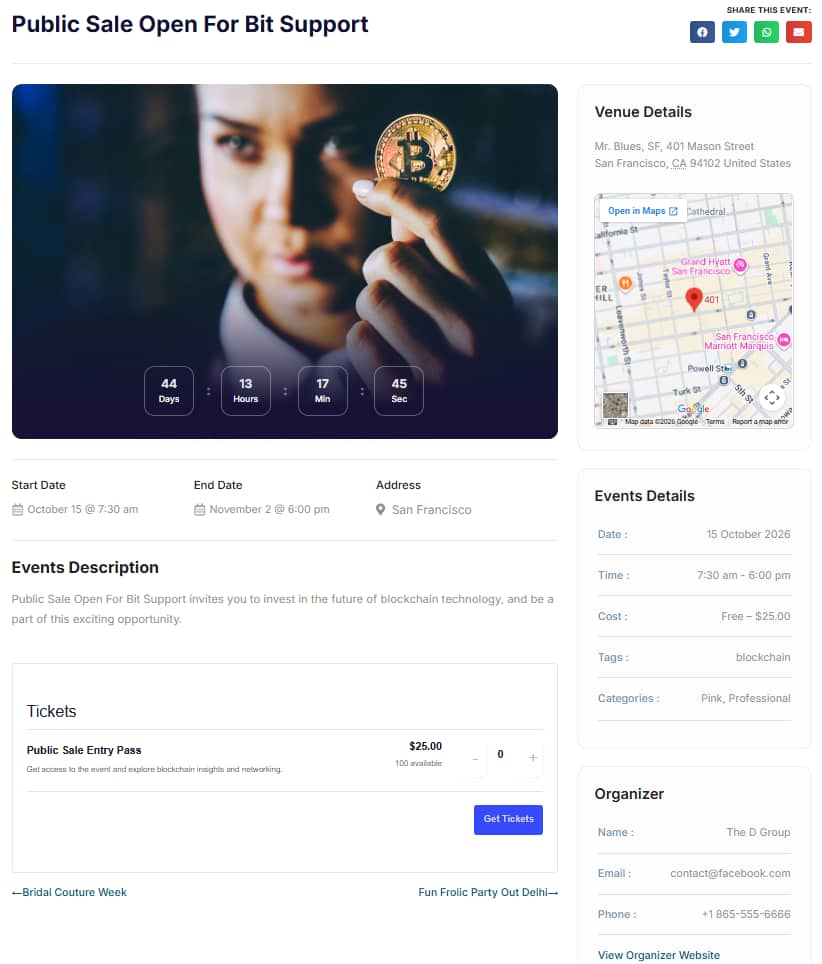
This step makes a big difference in how your website feels to visitors, because a well designed event page builds more trust and encourages people to register or attend.
Step 4: Add Search and Filters for Your Visitors
Once your website has more than a few events, visitors will find it difficult to scroll through everything to find what they are looking for. This is where search and filters become important.
Events Search & Filter Bar Pro allows your visitors to filter events by location, date, category, venue, or keyword. This is especially useful for websites that have events happening across different cities or categories, such as a multi-city conference or a community events website.
Adding this feature early is a good idea, even if you do not have many events right now, because it will save you the trouble of adding it later once your event list grows large.

Step 5: Showcase Speakers and Sponsors
If your events include speakers or sponsors, such as for a conference, workshop, or seminar, it is a good practice to give them their own space on your website.
Events Speakers & Sponsors lets you add speaker and sponsor profiles with photos, bios, and links, and connect them directly to your events. This not only makes your website look more professional but also gives your speakers and sponsors a reason to share your event page with their own audience.
This step is optional and only needed if your events involve speakers or sponsors, so you can skip it if it does not apply to your website.
Step 6: Optimise Your Event Pages for SEO
Getting your events to show up in Google search results is just as important as how they look on your website.
The good news is that The Events Calendar already adds basic schema markup, also known as structured data, to your event pages. This is what allows your events to appear with extra details in Google search results, such as the date and location.
To keep this working correctly, avoid using another SEO plugin that also adds event schema markup, as having two schema outputs on the same page can confuse search engines instead of helping you.
We will be covering event schema markup and SEO in more detail in an upcoming guide, so keep an eye on our blog for that.
Step 7: Handle Event Registrations and Tickets
As your event website grows, you may want visitors to register or buy tickets directly from your website.
The Events Calendar does not include ticketing in its free version, so for this, you can use Event Tickets, which is built by the same team and works directly with The Events Calendar.
If your events are simple and you only need a basic registration form instead of paid ticketing, you can also create a lightweight registration form and add it to your event pages.
Save More With the All Addons Bundle
If your event website needs more than one of these plugins, which is common for most event listing websites, it is more cost effective to get the All Addons Bundle instead of buying each plugin separately.
The bundle includes all six addons, including Events Widgets Pro, Events Shortcodes Pro, Event Single Page Builder Pro, Events Calendar Modules for Divi, Events Speakers & Sponsors, and Events Search & Filter Bar Pro, at a much lower combined price. You can check the current pricing on our pricing page.
Conclusion
Building a WordPress event listing website does not have to be complicated. With The Events Calendar as your foundation, you can start completely free, and then add the right tools as your website grows.
Here is a quick recap of the steps we covered:
- Install and set up The Events Calendar.
- Choose how to display your events, based on Elementor, Divi, or shortcodes.
- Design your single event page for a better visitor experience.
- Add search and filters once your event list grows.
- Showcase speakers and sponsors if your events need it.
- Keep your event pages SEO friendly for better Google visibility.
- Add ticketing or registration once you are ready to accept attendees.
Take it one step at a time, and you will have a fully functional event listing website that not only looks good but also works well for your visitors.
If you want to explore all the addons mentioned in this guide, you can visit our demos page to see live examples before making a decision.
Frequently Asked Questions
Is The Events Calendar plugin free to use?
Yes, The Events Calendar is free to install and use. It covers the basic features you need to create and list events on your website. If you want more design options, search filters, or ticketing, you can add those with separate addons as your website grows.
Do I need a page builder like Elementor or Divi to create an event website?
No, a page builder is not required. If you do not use one, you can still display your events in different layouts using shortcodes with Events Shortcodes Pro. A page builder simply gives you more visual control while designing your pages.
Can I sell tickets for my events on WordPress?
Yes, but The Events Calendar free version does not include ticketing on its own. You can add ticket sales using Event Tickets, which is built to work with The Events Calendar, or use a simple registration form if you do not need paid tickets.
Will my events show up in Google search results?
Yes, The Events Calendar automatically adds schema markup to your event pages, which helps Google understand your event details such as date and location. This can help your events appear with extra information in search results, so it is best to avoid using another plugin that also adds event schema on the same page.