The Events Calendar is one of the most popular WordPress event management plugins, helping businesses, organizations, and event planners create and manage events online. As more events attract international audiences, creating a multilingual event website has become essential for improving user experience, increasing registrations, and reaching attendees worldwide. However, manually translating event titles, descriptions, venues, organizers, speakers, and sponsor information can be time-consuming, especially for websites with frequent event updates.
AI-powered translation makes this process much faster by automatically translating event content into multiple languages while reducing manual effort. Depending on your multilingual setup, you can use different AI translation Addons:
- AutoPoly – AI Translation for Polylang
- AutoTP – AI Translation for TranslatePress
- AutoMLP – AI Translation for WPML
In this guide, you’ll learn how to automatically translate The Events Calendar events using AI and build a multilingual event website that can reach a global audience.
Benefits of AI Translation for Event Websites
- Reach a Global Audience: AI translation helps you make event information accessible to visitors from different countries, allowing you to attract more attendees and increase event visibility worldwide.
- Save Time and Effort: Instead of manually translating every event, venue, organizer, and speaker profile, AI can generate translations in minutes, significantly reducing workload.
- Keep Event Content Updated: When event details change, AI translation tools can quickly update translated versions, helping maintain consistency across all languages.
- Improve Multilingual SEO: Translating event pages into multiple languages allows your website to rank for event-related keywords in different regions and languages, increasing organic traffic.
- Reduce Translation Costs: AI-powered translation is often more cost-effective than hiring professional translators for every event update.
- Enhance User Experience: Visitors are more likely to engage with event content and complete registrations when information is available in their preferred language.
How to Automatically Translate The Events Calendar Events Using AI
Via AutoPoly – AI Translation for Polylang
First, make sure that you have installed and activated Polylang and AutoPoly – AI Translation for Polylang.
- Navigate to Events → All Events in your WordPress dashboard.
- Edit the event that you want to translate.
- Select the target language from the list of available languages.
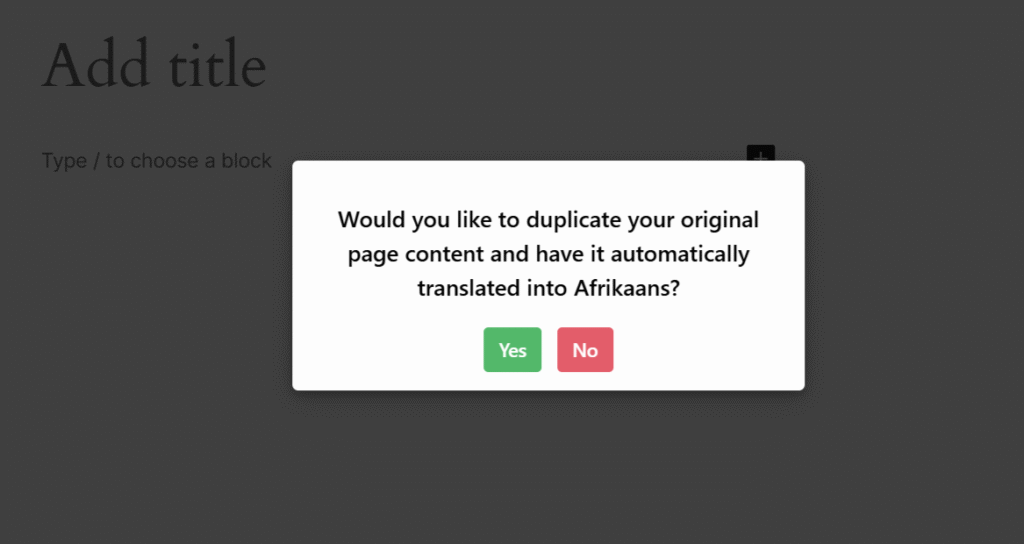
- A prompt will appear asking if you want to duplicate the original event content. Click Yes.
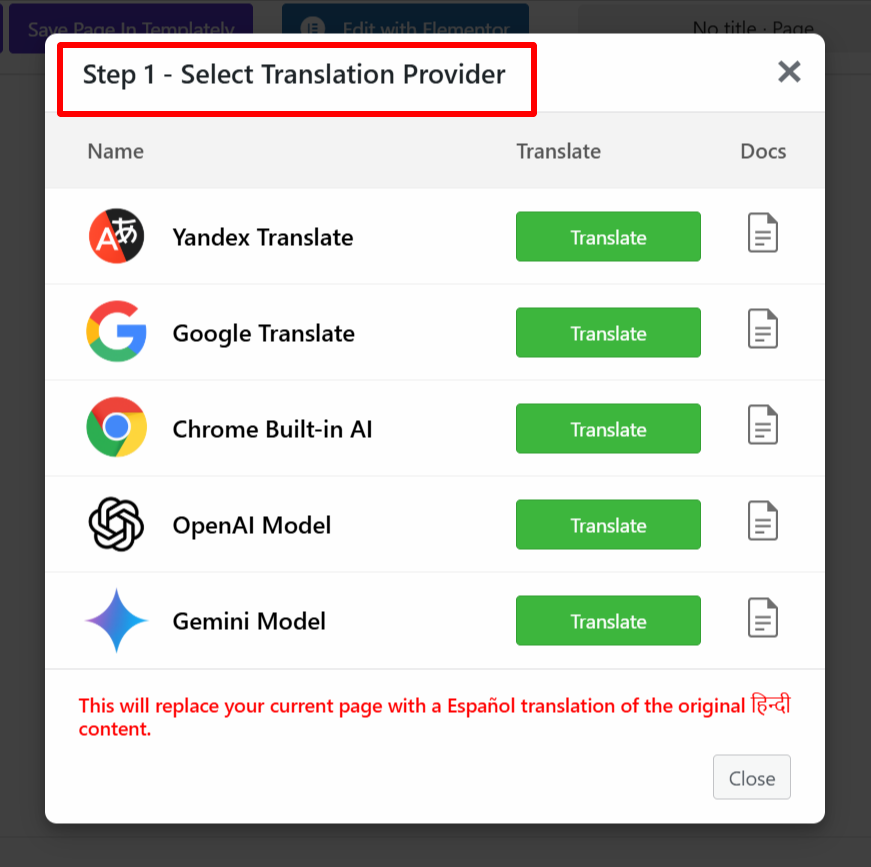
- Next, select a translation provider according to your preferences.
- Once selected, a translation panel containing both the source content and translated content will appear.
- Click Translate and wait a few moments while the translation process completes.
- After the translation is finished, click Update Content.
- Your event title, description, venue information, organizer details, and other event-related content will be translated into the selected language.
- Preview the translated event and make manual edits if necessary to improve accuracy.
Via AutoTP – AI Translation for TranslatePress
First, make sure that you have installed and activated TranslatePress and AutoTP – AI Translation for TranslatePress.
- Open the event page that you want to translate.
- Click the Translate Page button displayed in the WordPress admin bar.
- This will open the TranslatePress visual translation editor.
- Select the language into which you want to translate the event.
- After selecting the target language, the Auto Translate button will become available.
- Click Auto Translate.
- A popup will appear asking you to select a translation provider.
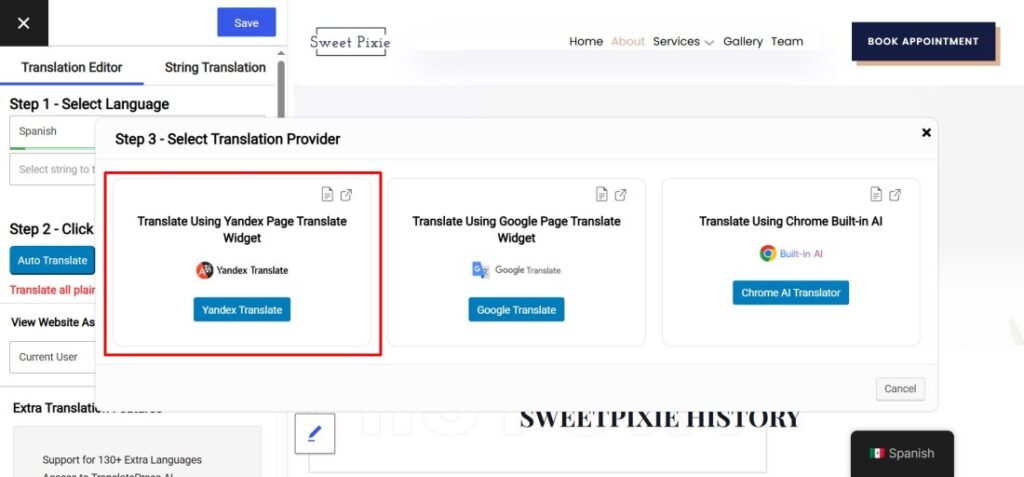
- Choose your preferred translation provider from the available options.
- Select the target language and start the translation process.
- AutoTP will automatically translate the event title, description, venue details, organizer information, and other event-related content.
- Once the translation is complete, click Merge Translation.
- Review the translated content and make any required adjustments.
- Click Save Translation to publish the translated version of your event.
Via AutoMLP – AI Translation for AutoMLP
First, make sure that you have installed and activated WPML and AutoMLP – AI Translation for WPML.
- Navigate to Events → All Events.
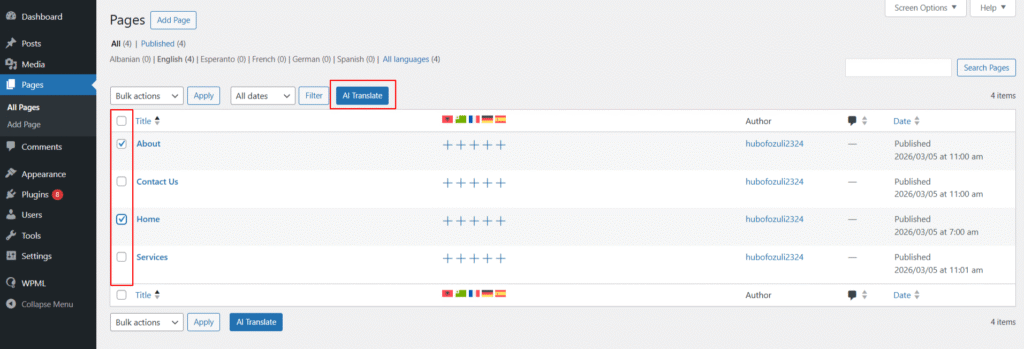
- Use the checkboxes to select one or more events that you want to translate.
- Click the AI Translate button.
- A popup will appear asking you to select the target language.
- Choose the language in which you want to translate your events.
- Next, select your preferred translation provider, such as Chrome Built-in AI, OpenAI, or Gemini AI.
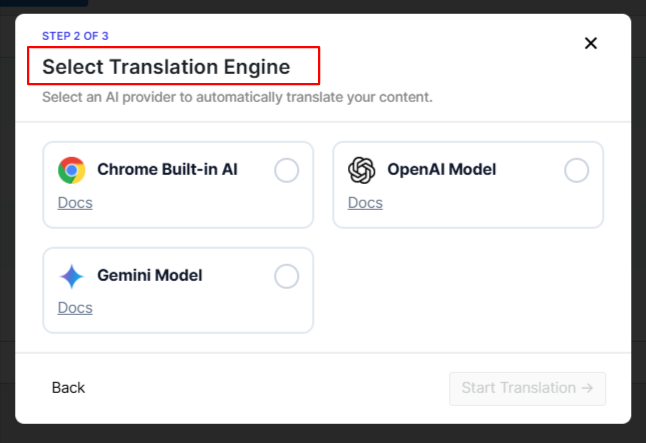
- The translation process will begin automatically.
- Wait while AutoMLP translates all event content, including event titles, descriptions, venue information, organizer details, speaker profiles, sponsor information, and event schedules.
- After the translation is complete, open the translated event and review the content.
- Make any manual edits required to improve accuracy or localize the content for your audience.
FAQs
Can AI automatically translate all The Events Calendar event content?
Yes, AI translation tools can translate most event-related content, including event titles, descriptions, venue details, organizer information, speaker profiles, sponsor information, and schedules. However, it’s recommended to review translations before publishing to ensure accuracy and proper localization.
Which multilingual plugin works best with The Events Calendar?
The best option depends on your existing multilingual setup. If you use Polylang, AutoPoly is a suitable choice. For TranslatePress users, AutoTP provides visual AI translation, while WPML users can automate translations using AutoMLP.
Will translated event pages help improve multilingual SEO?
Yes. Translating your event pages allows search engines to index content in multiple languages, helping your website rank for event-related keywords in different regions and attract more international visitors.
Can I automatically translate WordPress plugins and themes using LocoAI?
Yes. LocoAI enables you to automatically translate WordPress plugin and theme language files using AI, helping you create multilingual websites faster while reducing manual translation work.
Can I edit AI-translated event content manually?
Absolutely. AI translations provide a fast starting point, but you can manually edit translated event titles, descriptions, venue details, and other content to improve accuracy and adapt it to local audiences.
Do AI translation tools support recurring events?
Yes. Most AI translation solutions can translate recurring events just like standard events. After translation, you can review individual occurrences to ensure all event details are correctly localized.
How often should I update translated event content?
Whenever you modify event details such as dates, descriptions, venues, or speakers, it’s recommended to update the translated versions as well. AI translation tools can significantly speed up this process and help keep all language versions synchronized.