If your website has only a few events, the default keyword search in The Events Calendar may be enough. But as your event calendar grows, visitors often need more ways to discover the events.
For example, visitors may want to find events happening this weekend, workshops at a specific venue, events from one organizer, or events in a certain category or tag. In these cases, a basic keyword search can make it harder to reach the right event quickly.
This is where a more advanced search and filtering system can help.
Events Search & Filter Bar Pro is an addon for The Events Calendar that improves the existing search experience with more advanced filtering options.
In this guide, you’ll learn how to add and customize an advanced search and filter bar so visitors can find the right events faster and with less effort.
What is an Events Search and Filter Bar?
Events Search & Filter Bar Pro works with The Events Calendar and adds more search, filtering, and result options, giving visitors a simpler way to find relevant events.
Visitors can search events using keywords and dates, and narrow the results further with filters such as categories, tags, venues, organizers, and locations.
The best part is that it is a shortcode-based addon. It generates separate shortcodes for the search bar and event results, based on the options you select.
You can place the search bar and event results anywhere on your website using shortcodes. It works with Elementor, Gutenberg, Divi, or any other WordPress builder that supports shortcodes.
The following are some key features of the Events Search and Filter Bar:
Key Features
- Advanced Event Filters: Advanced search filters help visitors to discover events by category, tag, venue, organizer, location, and date instead of browsing the complete event list.
- Shortcode-Based Addon: Add the search bar and event results to any page or post using smart shortcodes. You can use them with Elementor, Gutenberg, Divi, and other WordPress builders that support shortcodes.
- Flexible Shortcode Controls: Use shortcode attributes to control filters, layouts, date range, number of events, sorting, categories, venues, and organizers.
- Customizable Event Result Pages: Choose how matching events are displayed using different layouts, card styles, and event details. You can show results on the same page or on a separate results page.
- Type-Ahead Suggestions: Matching events can appear while visitors are typing in the search box. This helps users reach an event quickly when they already know part of its name.
- Shareable Filtered Views: Search and filter information can be kept in the page URL, making it easier for visitors to bookmark or share a filtered event view.
Now let’s follow the steps to add an advanced search bar to The Events Calendar.
Step-by-Step Guide to Add an Advanced Search Bar to The Events Calendar
Prerequisites
Before you begin, make sure The Events Calendar is installed and activated on your website.
Since Events Search & Filter Bar Pro is an addon, it requires The Events Calendar to create and manage the events that visitors will search.
Customize the Search Bar
- After activating the Events Search and Filter Bar, the Events Addon section will appear on your WordPress Dashboard.
- Navigate to Events Addon > Search and Filter Bar.
- Here you will find the Event Search and Filter Bar settings with a demo preview.
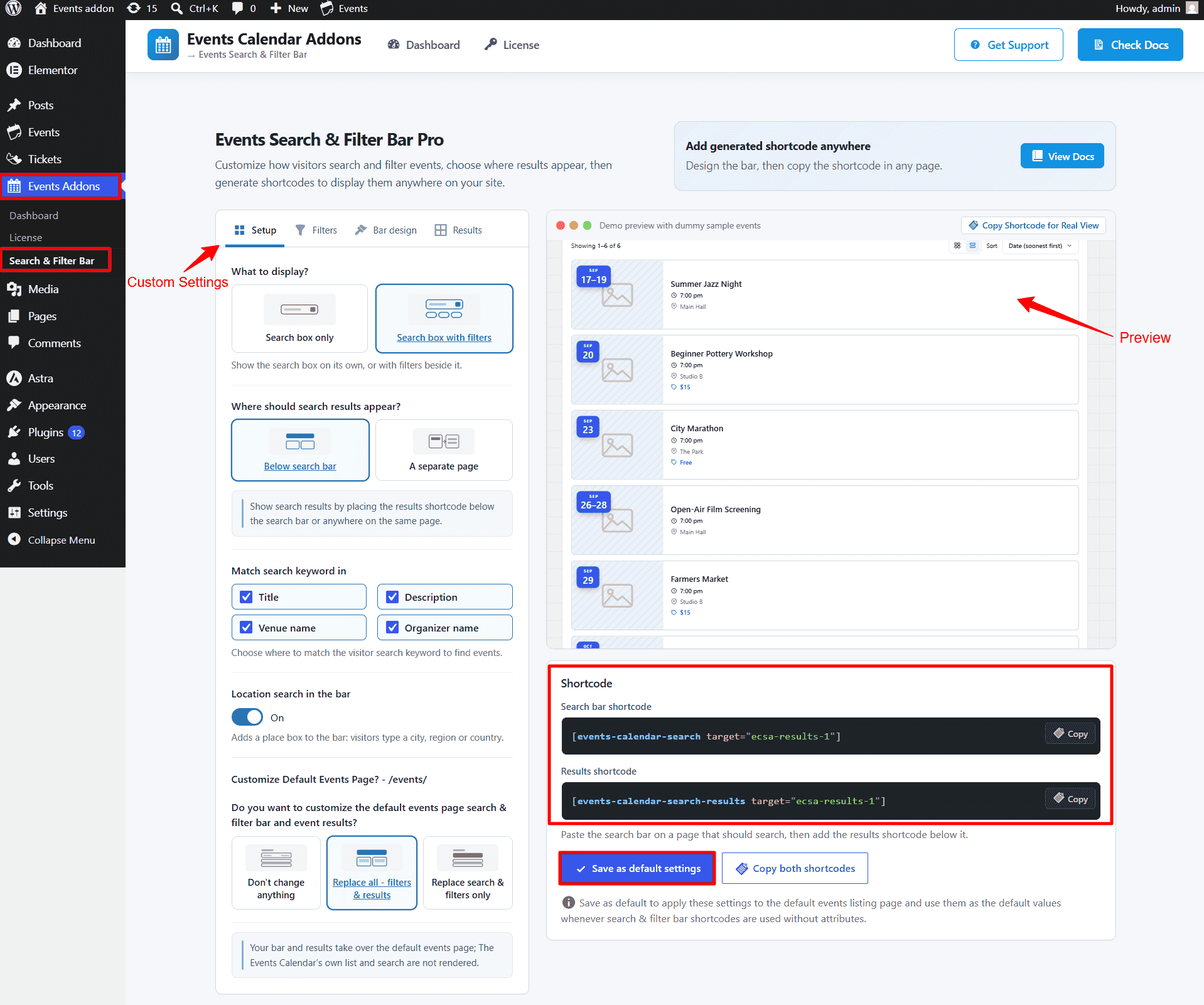
- Setup Tab: Choose what to show in the search bar, where results appear, what event details are searched, and whether to add filters or a location search.
- Filters: Choose which filters visitors can use, such as category, tags, venue, organizer, or date. Also decide where those filters will appear on the search bar.
- Bar Design: Customize the search bar’s colors, spacing, button style, border radius, and overall look. There’s a preview so you can see changes as you make them.
- Event Results: Control how matching events are displayed. Choose grid or list layout. Set the number of events and pick sorting options. Decide which event details are shown.
For a detailed explanation of each setting tab, visit the Events Search & Filter Bar Pro documentation.
Add the Search Bar to Your Page
Once you are satisfied with the changes, you can copy the shortcodes and paste them into the page, post, widget, or page‑builder area where you want the search box.
The plugin automatically creates the required shortcode based on your choices.
A basic bar can be added with:
[events-calendar-search]To add a separate event results area:
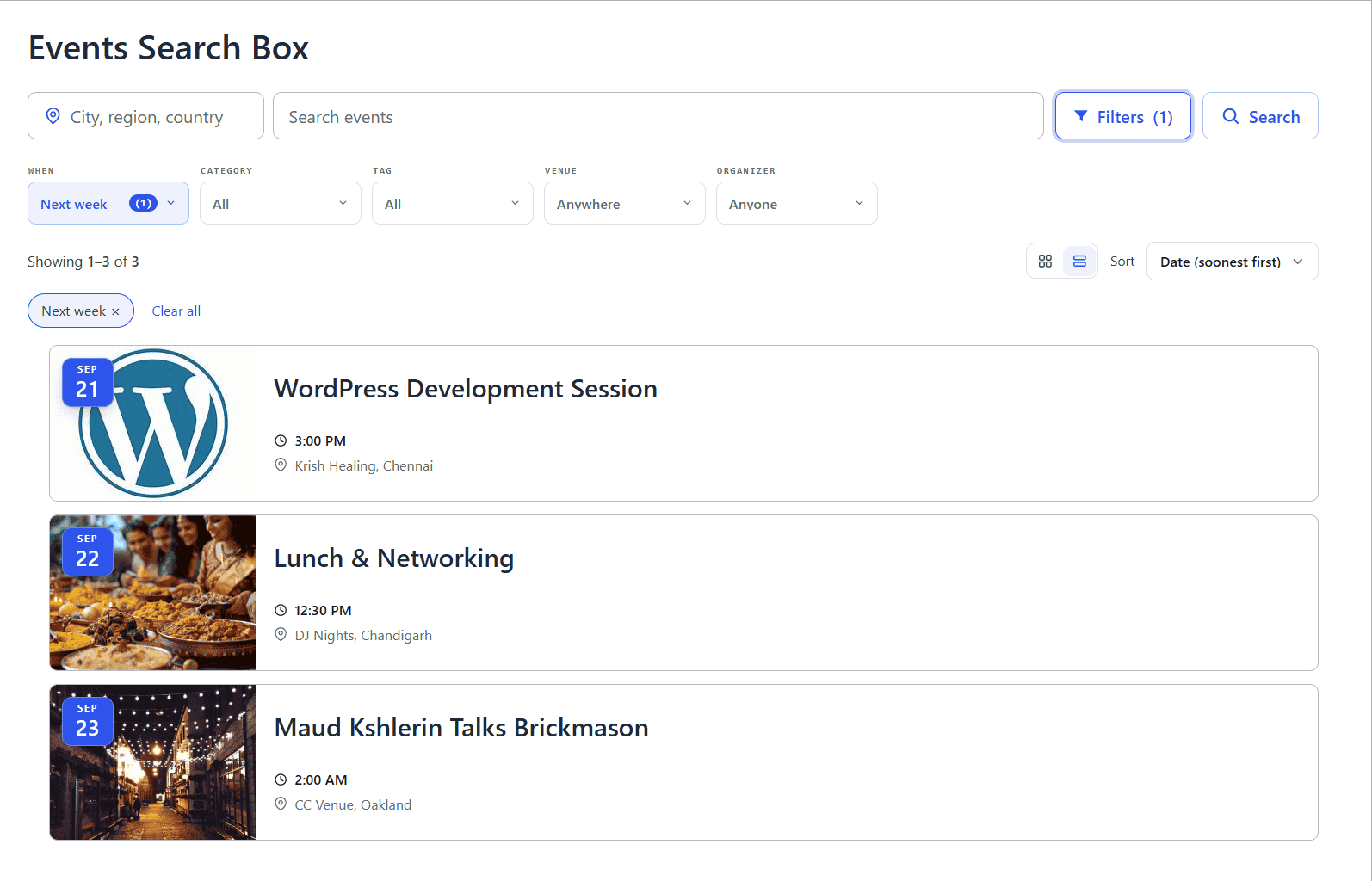
[events-calendar-search-results]Here is an example of the final Events Search & Filter Bar output:
Conclusion
Events Search and Filter Bar Pro is particularly useful when your website has several event categories, multiple venues or organizers, events across different locations, or a large number of upcoming events.
Instead of changing your whole event setup, you can combine The Events Calendar with Events Search and Filter Bar and make event discovery more powerful.
FAQs
Do I need The Events Calendar to use Events Search & Filter Bar?
Yes. Events Search & Filter Bar is an addon for The Events Calendar, so The Events Calendar must be installed and activated on your WordPress website.
Is there a free version of Events Search & Filter Bar?
Yes. The free version provides the basic event search experience, including keyword search, date options, search suggestions, and event results.
What additional features are available in the Pro version?
The Pro version adds more advanced filtering options, including categories, tags, venues, organizers, and location-based search, along with additional customization and result options.
Where can I add the event search and filter bar?
You can add it to pages, posts, event landing pages, widget areas, or other sections that support WordPress shortcodes.
Which WordPress builders does it work with?
It works on any WordPress site running The Events Calendar (Free or Pro) and can be used with any theme. Since the bar is added through a simple shortcode, it works with the Block Editor, Elementor, Divi, Beaver Builder, Bricks, WPBakery, and other builders that support shortcodes.
Can I display search results on a separate page?
Yes. You can show matching events on the same page as the search bar or use a separate results page, depending on how you want visitors to browse events.
Can I customize which filters appear in the search bar?
Yes. You can choose the filters you want visitors to use and control where they appear in the search interface.
Will the addon replace my existing events?
No. The addon does not change or replace your existing events. It works with the events already created in The Events Calendar and improves how visitors search and filter them.